

Image Creator-AI image generation service
AI-powered image creation for fast, beautiful visuals
To create beautiful image very easily
Create a picture that make me feel happy
Get Embed Code
Related Tools

Image Wizard 🧙♂️✨
Unleash your creativity with Image Wizard! Powerful AI image generator that transforms your imagination to stunning images(artwork, logo, background image, Youtube thumbnail etc.). Simply describe what you imagine, Image Wizard will use DALL-E to create b
Surreal - izer
Transform your ideas and images on surreal creations
画像生成
働く女性の画像を生成

のDALLE Editor (Image Generator & Editor)
Help create images with DALL·E, and then edit them. It can write long text on the image, rotate the image, adjust the image's contrast, combine multiple pictures into one, and so on.
Criador de Imagens Realistas
Crio imagens realistas sob demanda.
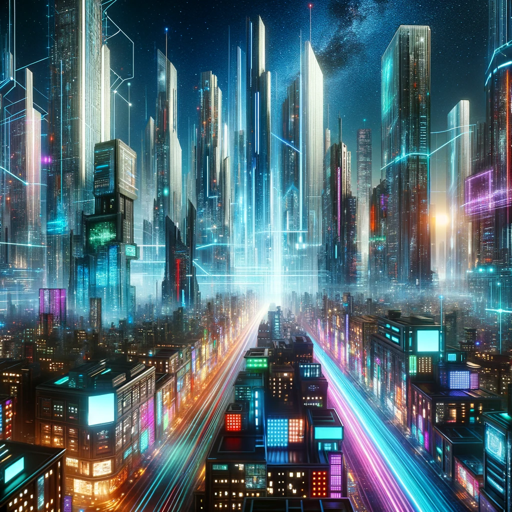
High-Quality Image Generator
This tool generates 5 high-quality prompts and images based on a user's input sentence.
Image Creator — Purpose and Core Design
Image Creator is a purpose-built generative image assistant that transforms textual instructions and supplied images into finished visual assets. Its core design centers on three principles: expressiveness (supporting rich, detailed prompts and stylistic direction), control (parameters for output size, number of variants, and transparent backgrounds; and the ability to reference and edit uploaded images), and usability (quick iteration, simple API-like parameters, and clear guidance for non-expert users). Practically, Image Creator accepts a text prompt describing the desired scene, subject, style, or edit plus optional referenced images and returns one or more generated images. It also supports image editing tasks — e.g., background removal, adding or removing elements, color/style transfers, or creating variations of an existing photo — by taking a referenced image ID and edit instructions. Example scenarios: 1) A product manager needs 6 hero-banner variations for an e-commerce homepage: they supply a short product description and brand style notes and receive several 16:9 images in the requested palette for A/B testing. 2) A mobile game artist rapidly prototypes environment styles: they send a prompt like “foggy neon alley, wet pavement, cinematic rim light, 3/Image Creator overview4 perspective” and iterate on the returned images to land on a final aesthetic. 3) A content creator uploads a portrait and asks for a stylized editorial retouch with background replacement and film-grain — Image Creator performs the edit while preserving facial features and key composition. These examples illustrate the dual capability to generate fresh imagery from text and to precisely edit or extend supplied images, making Image Creator suitable for ideation, production, and iteration workflows across creative and commercial contexts.
Primary Capabilities and How They’re Applied
Text-to-image generation
Example
Produce a high-resolution poster of a bicycle on a coastal road at sunrise in a painterly impressionist style, with warm color grading and visible brush strokes.
Scenario
A marketing team needs multiple concept visuals for a seasonal campaign. They provide descriptive prompts (tone, composition, color palette) and receive several distinct renderings to choose from. The team uses the best candidate directly as a draft for final art or hands it off to designers for refinement.
Image editing / inpainting & outpainting
Example
Upload a product photo and request removal of a distracting object, replacement of the background with a flat pastel color, and addition of a soft shadow for realism.
Scenario
An e-commerce small-business owner needs consistent product images but has only a handful of photos. They batch-edit each image to remove backgrounds, unify lighting and add brand-appropriate shadows and reflections, producing a set of consistent thumbnails used across the site and ads.
Style transfer and variations
Example
Take a user-supplied portrait and create five stylistic variations: (1) retro film grain, (2) high-contrast pop-art, (3) painterly oil portrait, (4) minimalist flat vector, (5) cinematic teal-and-orange grade.
Scenario
A creative director is exploring different visual directions for an album cover. Instead of commissioning multiple artists, they generate several distinct stylizations from the same base image to present options to stakeholders and refine the creative brief before final illustration or photography.
Who Benefits Most from Image Creator
Designers, illustrators, and creative teams
These users leverage Image Creator to accelerate ideation and reduce repetitive workload. For example, concept artists use quick text-to-image drafts to explore composition and mood before committing to detailed illustration; UI/UX designers generate on-brand hero imagery for mockups; and agencies create multiple campaign visuals for client review. Image Creator saves time in the early creative loop, enabling more experiments with lower cost.
Small businesses, marketers, and content creators
This group benefits from on-demand, affordable visual production. Use cases include producing product photos with consistent backgrounds for e-commerce, generating social media graphics in multiple aspect ratios, and retouching user-supplied images for polished thumbnails or ads. The ability to produce variants (different layouts, colorways, or focal crops) is particularly valuable for A/B testing creative assets across channels without hiring external studios.
How to use Image Creator (5 steps)
Visit aichatonline.org for a free trial without login, also no need for ChatGPT Plus.
Open that site to access Image Creator’s free trial instantly — no account, no ChatGPT Plus required. This gives you immediate hands-on access to the interface and templates.
Choose a workflow and input your prompt
Select the right mode (e.g., generate, edit, or upscale). Write a concise but descriptive prompt: subject, style, colors, mood, aspect ratio, and any constraints (e.g., ‘portrait, oil painting, warm tones, 3:4’). For edits, upload the image and describe the changes precisely.
Adjust settings and run generation
Configure resolution, aspect ratio, number of variations, and advanced knobs (strength, creativity/temperature, seed for reproducibility). Preview small thumbnails first, then render full resolution when satisfied to save time.
Review results and iterate
Compare variations, pick the best, and refine the prompt or settings if needed. Use inpainting/masking for targeted edits, or use the upscale/denoise option to improve fidelity. Keep iterations focused (change one variable at a time).
Download, export,How to use Image Creator and apply best practices
Export in the required format (PNG/JPEG/WebP). For commercial use check license terms, keep a record of prompts & seeds for reproducibility, and optimize images (compress, color-profile) before publishing.
Try other advanced and practical GPTs
Svelte Assistant
AI-powered assistance for smarter productivity.
Expert in C/C++ Coding
AI-driven coding insights for C/C++ developers.

AI绘画提示词书写专家
AI-powered prompt creation for artists.

技术专利撰写指导师v2.0
AI-driven Patent Drafting Made Easy
Suno AI-Instrumental Song Prompt Maker
AI-powered prompt generator for instrumental tracks
Flashcard Genius (Anki)
AI-powered flashcards for faster mastery
实习报告助手
AI-powered drafting and polishing for internship reports
DMARCレポート分析 ver1
AI-powered DMARC analysis for fast remediation
Social Media Content Calendar
AI-powered calendar that plans, writes, and visualizes
Keywords for Photostocks
AI-driven keyword tagging for stock photos.
Youtub Thumbnail GPT
AI-powered thumbnail creation that boosts clicks
Yandere girlfriend Akira
AI-driven yandere girlfriend for immersive interactions
- Social Media
- Graphic Design
- Presentations
- Product Mockups
- Portraits
Common questions about Image Creator
What file types and sizes does Image Creator accept and output?
Image Creator accepts common raster formats for uploads (PNG, JPEG, WebP) with recommended max upload sizes noted on the site (typically 10–25 MB). Outputs are available as PNG or JPEG at multiple resolutions; an upscaled high-res export option is usually offered for print or large displays.
How should I write prompts to get consistent, high-quality results?
Be explicit and layered: start with the subject and composition (e.g., ‘female scientist at lab bench, three-quarter view’), add style and mood (e.g., ‘hyperrealistic, cinematic lighting, soft shadows’), then specify color palette, aspect ratio, and camera/lens if relevant. Use reference artists or styles sparingly and iterate — small adjustments to adjectives or camera terms yield noticeable differences.
What are typical use cases where Image Creator shines?
Common scenarios include concept art, marketing visuals, social media assets, product mockups, avatars/portraits, website hero images, and quick storyboarding. It’s also useful for targeted image edits such as background replacement, color grading, and object removal via masking.
Are there privacy or licensing considerations I should know about?
Yes. Review the tool’s terms: check whether images generated are royalty-free for commercial use or require attribution, and whether uploaded source images are stored or used for model training. For sensitive or private photos, use local editing workflows when possible and confirm data retention and deletion policies on the provider’s site.
What are the tool’s limitations and best mitigation strategies?
Limitations include occasional anatomical or text rendering errors, style inconsistency across batches, and dependence on prompt quality. Mitigate by: (1) using reference images or masks, (2) generating multiple variations, (3) post-processing in an editor for fine corrections, and (4) locking a seed for reproducibility when available.